Spending hours at a desk may feel like the norm, but the long-term impact on your spine is anything but normal. Poor workplace ergonomics: how your workstation is arranged and how you sit or move, can lead to persistent back pain, neck stiffness, fatigue, and even chronic musculoskeletal issues.
Fortunately, these problems are often preventable with a few smart adjustments. If you’re looking to protect your spine, reduce discomfort, and create a healthier, more productive office environment, you’re in the right place.
Here are seven effective workplace ergonomics tweaks that can make a real difference:
1. Adjust Your Chair for Proper Spinal Alignment
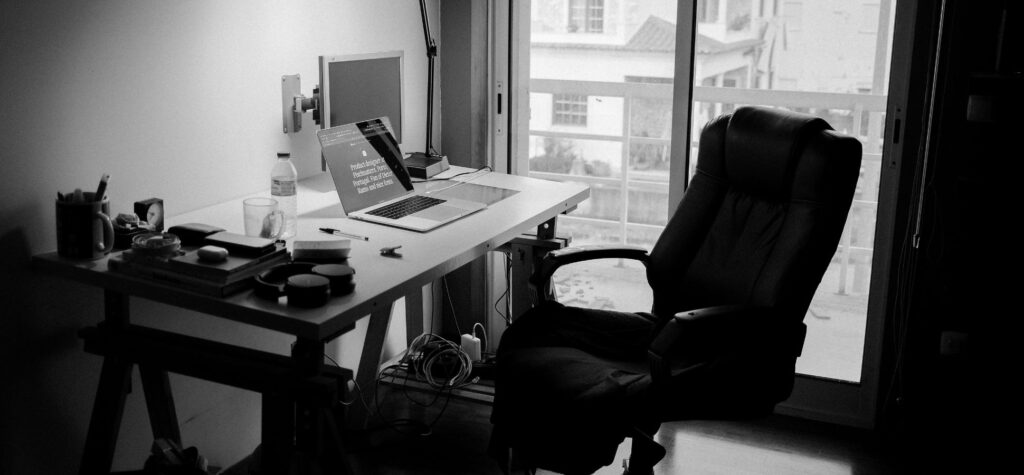
Let’s start with the foundation of your setup: your chair. It’s the one piece of office furniture you interact with the most, and when it’s not adjusted properly, your spine pays the price.
Ensure Your Feet Are Flat and Your Thighs Are Parallel
Your chair height is crucial.
Your feet should rest flat on the floor with knees at a 90-degree angle and thighs parallel to the ground. If your feet dangle or your knees are too high, it throws off your posture and increases strain on your lower back.
Support the Natural Curve of Your Spine
A well-designed office chair should have built-in lumbar support that aligns with your lower back’s natural curve.
If your current chair doesn’t offer this, consider adding a lumbar cushion or a rolled towel to fill the gap and promote healthy spinal posture throughout the day.
Fine-Tune Seat Depth and Armrests
Make sure there’s a small gap between the edge of the seat and the back of your knees; about 2 to 3 inches is ideal. Your armrests should support your forearms gently without lifting your shoulders. The goal is full support with minimal tension.
Getting this right not only reduces lower back pain but also sets the tone for the rest of your workstation alignment.
2. Set Your Monitor at the Right Height and Distance
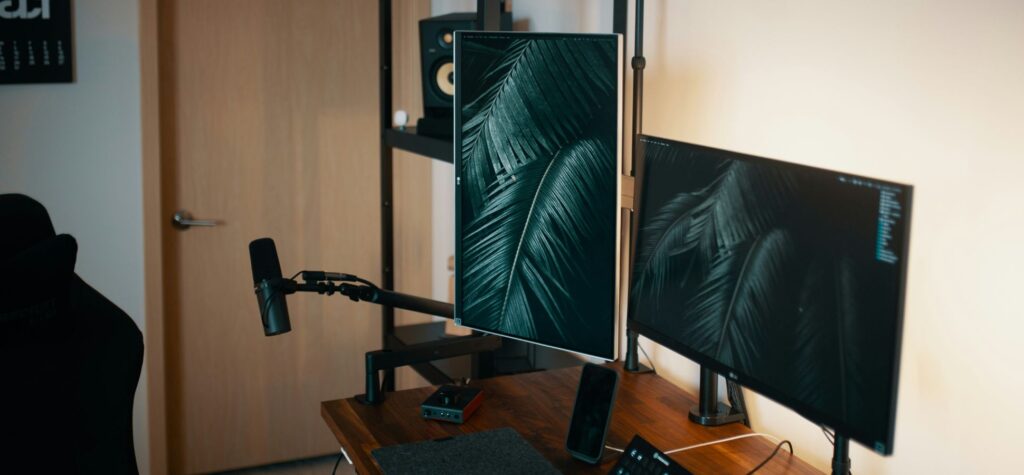
Once your chair is dialed in, the next step is aligning your monitor. A poorly placed screen is one of the most common causes of neck and upper back strain.
Keep the Top of the Screen at Eye Level
Your eyes should meet the top third of your monitor when you’re sitting upright. If the monitor is too low, you’ll end up looking down, which strains the neck and upper back. If it’s too high, it encourages an unnatural tilt of the head.
Maintain an Arm’s Length Viewing Distance
Position your monitor about an arm’s length (20–30 inches) away from your face. This helps you maintain a neutral neck position while minimizing eye fatigue, especially during long work sessions.
Proper monitor height and distance can transform your screen time into a much more spine-friendly experience.
3. Position Keyboard and Mouse to Support Neutral Posture
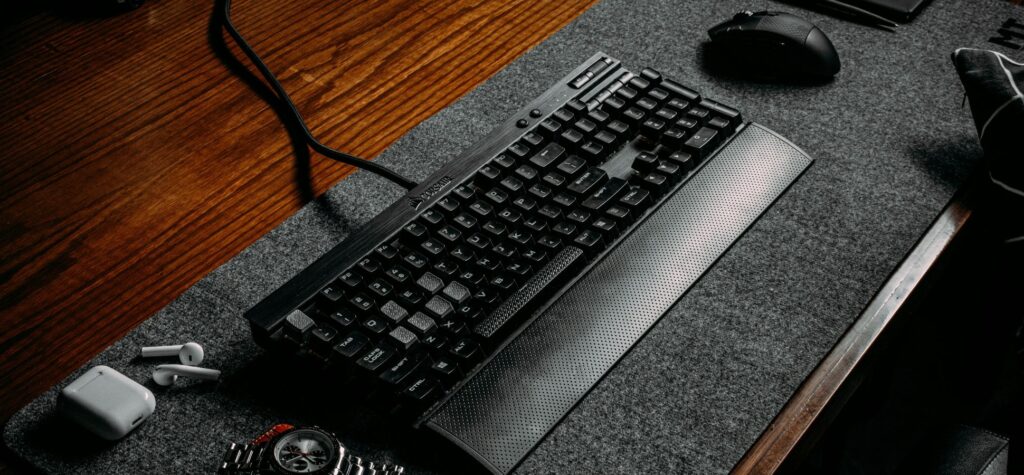
After fine-tuning your monitor, your keyboard and mouse need equal attention. These tools may seem harmless, but if they’re positioned poorly, they can quietly contribute to wrist strain, shoulder tension, and upper back fatigue.
Keep Wrists Straight and Elbows Close
Your keyboard should allow you to type with your wrists in a neutral position: straight, not bent up or down. Your elbows should stay close to your body, bent at roughly 90 degrees.
If your desk or tray is too high, it forces your shoulders to rise, increasing tension and fatigue.
Place Mouse and Keyboard Within Easy Reach
Avoid stretching to use your mouse. Keep it directly beside the keyboard at the same level. The less you reach or twist your arm, the better for your shoulder alignment and wrist health.
Consider Ergonomic Tools for Extra Support
Ergonomic keyboards, split-keyboard designs, and vertical mice can offer enhanced support, especially for those with repetitive strain symptoms. A wrist rest may also help, as long as it encourages natural hand positioning without adding pressure.
4. Organize Your Desk for Better Reach and Comfort
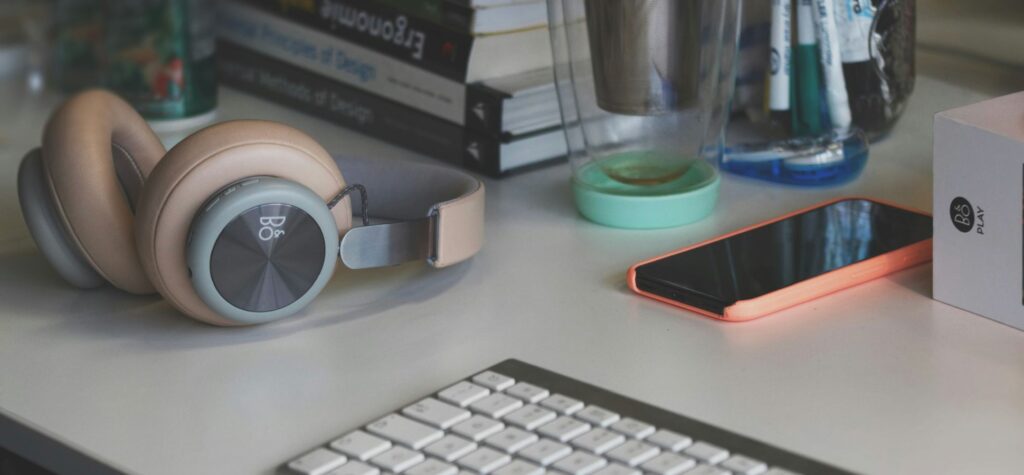
A well-organized desk setup isn’t just about aesthetics; it’s critical for reducing strain and improving comfort throughout your workday.
Before diving into the specifics, consider how often you reach, twist, or lean awkwardly to access things on your desk. If it’s more than occasionally, this tweak is essential.
Create a Primary Reach Zone
Arrange the items you use most (keyboard, mouse, notepad, phone) within your immediate reach zone. This is typically an arc that spans the distance your forearm can cover without extending your elbow.
Keeping frequently used tools in this area helps maintain a neutral posture and reduces unnecessary shoulder movement.
Avoid Desk Clutter That Promotes Bad Habits
When your desk is cluttered, you’re more likely to twist awkwardly or crane your neck to see around objects. Clean, intentional layouts support efficiency and reduce physical tension. Also, make sure cables and accessories don’t interfere with your arm movements or legroom.
By treating your desk as an extension of your body’s natural range of motion, you create a more intuitive, ergonomic, and spine-friendly workspace.
5. Incorporate Movement Breaks to Prevent Prolonged Strain

No matter how perfect your desk setup is, sitting in the same position for hours is bad news for your spine.
That’s why movement is a critical part of any ergonomic strategy.
Break the Habit of Static Sitting
Every 30 to 60 minutes, stand up and move. Even a brief walk across the room, some light stretching, or shoulder rolls can reduce muscle fatigue and stimulate circulation. Movement helps “reset” your posture and gives your back a much-needed break.
Explore Sit-Stand Work Options
If possible, incorporate a sit-stand desk or a standing desk converter into your workspace. Alternating between sitting and standing throughout the day can ease lower back pressure, improve focus, and reduce discomfort caused by prolonged sitting.
The key is not to stay in any one position too long. A dynamic work routine is one of the best ways to maintain spinal health and overall comfort.
6. Improve Lighting and Screen Glare to Protect Your Eyes and Posture
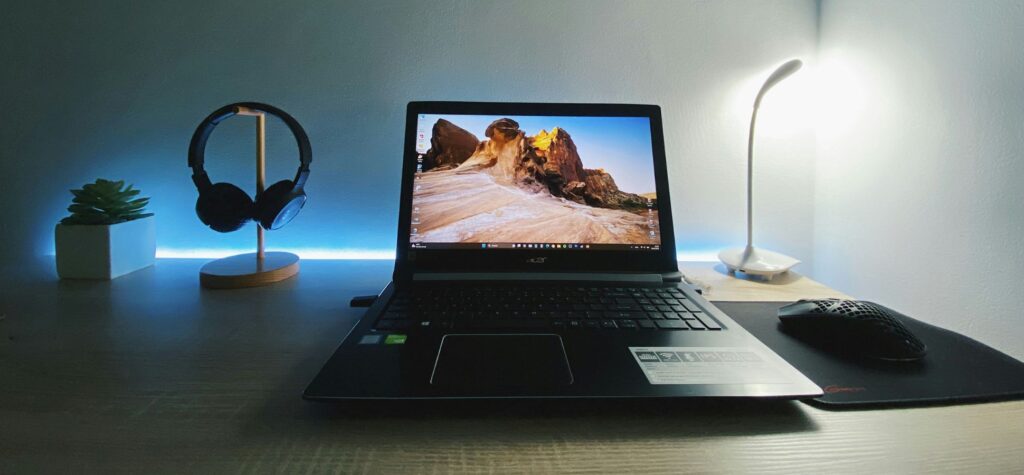
Lighting might not seem like an ergonomic issue at first, but poor illumination or excessive screen glare can directly impact your posture. When you’re squinting, leaning forward, or adjusting awkwardly to see your screen, your spine takes the hit.
Use Adjustable Lighting to Minimize Glare
Natural light is ideal, but it needs to be balanced.
If sunlight creates glare on your monitor, consider repositioning your desk or using blinds. Desk lamps with adjustable brightness can help you direct light where it’s needed without straining your eyes or tilting your head unnaturally.
Tweak Screen Settings for Better Visual Comfort
Adjust your screen’s brightness and contrast to a level that matches the ambient light in your room.
Some monitors come with blue light filters, which can also reduce eye fatigue. If glare continues to be a problem, anti-glare screen filters can be an effective fix. By reducing visual strain, you’re less likely to slouch, lean, or contort your spine into unhealthy positions while working.
7. Use Ergonomic Accessories to Customize Your Workspace
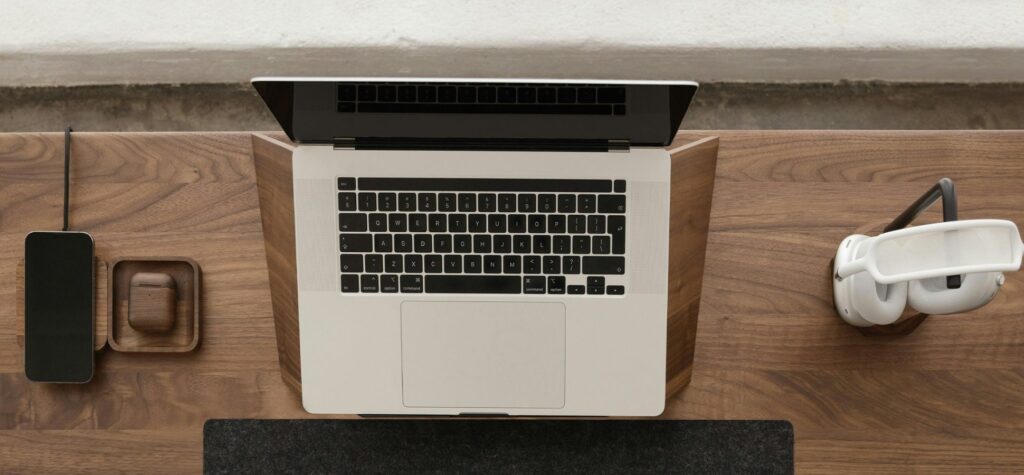
The right accessories can make a dramatic difference in your daily comfort and posture.
These tools are designed to support your body’s natural mechanics, and when chosen well, they can relieve tension you didn’t even know you were carrying.
Footrests and Monitor Risers for Stability
If your feet don’t rest flat on the floor, a footrest can restore balance and relieve pressure on your lower back. Similarly, a monitor riser brings your screen to eye level, especially useful if you use a laptop.
Cushions and Desk Converters for Tailored Comfort
Lumbar cushions offer targeted back support, while gel seat cushions can reduce hip pressure. A sit-stand desk converter allows you to alternate positions without overhauling your entire setup.
Invest Based on Your Body and Routine
There’s no one-size-fits-all ergonomic solution. Your height, daily tasks, and pain points should guide your choices. Accessories should support your specific needs, not just look good on your desk.
Making your workspace adapt to you is the essence of ergonomic design, and a key step toward protecting your spine.
Posture Awareness and Daily Habits That Reinforce Ergonomics
While tools and tweaks are powerful, your awareness of posture is what sustains real change. The best ergonomic setup still needs consistent habits to keep your spine in good shape.
- Regularly check in with your posture: are your shoulders relaxed? Is your back supported? Are your wrists straight?
- Set reminders to stretch or reset your posture every hour.
- Use posture correction apps or wearable devices if you need gentle nudges throughout the day.
Staying mindful of how your body feels and moves is a long-term strategy for spinal health.
Transform Your Workspace and Protect Your Spine for Life
You don’t need a full office renovation to protect your spine. Just a few intentional changes can make a world of difference.
By adjusting your chair, optimizing monitor placement, refining your desk layout, and incorporating movement and ergonomic tools, you’ll create a workspace that supports both your health and productivity.
Start with one tweak today, and build from there. Your back will thank you.
Happy wishes!
Regards.